
Original tutorial (Chinese) written by 咖喱猫扒饭 on Bilibili.
🌟 中文教程点击此处。
This modding tutorial is intended only for Steam version Otherworld Legends. If you are targeting Android, you will need to do a few additional steps to deal with apk. I won’t do this unless someone requests it.
Author: Kolyn090
Game version used in this tutorial: v2.9.1
Windows x64
Date: 5/15/2025
IMPORTANTModding comes with unknown risks, including potential game instability, corrupted save files, compatibility issues, and even security vulnerabilities. Always back up your game files and proceed with caution. Proceed at your own risk – I can’t take responsibility if things go sideways.
Step 1️⃣
First, get AssetStudio.net6.v0.16.47 from AssetStudio. Also install .NET 6.0 into your PC.
Next, get the eight release of UABEA and get Visual Studio 2022 IDE the Community version. On your PC search bar, type “Visual Studio Installer” and open it. Under Installed, you should see Visual Studio Community 2022. Click Modify. Enter “Visual C++” in Individual components. You should see a component called C++ 2022 Redistributed Update. Download and install that. Close your Visual Studio Installer and reboot your PC.
Also, you are going to need AddressablesTools. Choose Examples release 2. After that download and install .NET 8.0.
Step 2️⃣
Navigate to the Steam folder where the game is stored. For example:
Local Disk (C:)/Program Files (x86)/Steam/steamapps/common/Otherworld Legends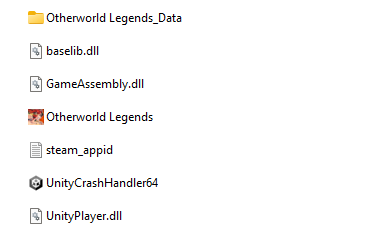
The key is that you should see the .exe of playable game once you redirect to this folder
but in this case we are interested in the Otherworld Legends_Data folder (which should be in the
same directory as the game).
Open Otherworld Legends_Data -> SteamingAssets -> aa -> StandaloneWindows64
Here is the collection of replaceable game assets. E.g. if you want to change the skin of one of the heroes, open spriteassetgroup_assets_assets -> needdynamicloadresources -> spritereference.
I will stick with changing hero skin in the rest of the tutorial but you should be able to adapt the knowledge to other types of asset as well.
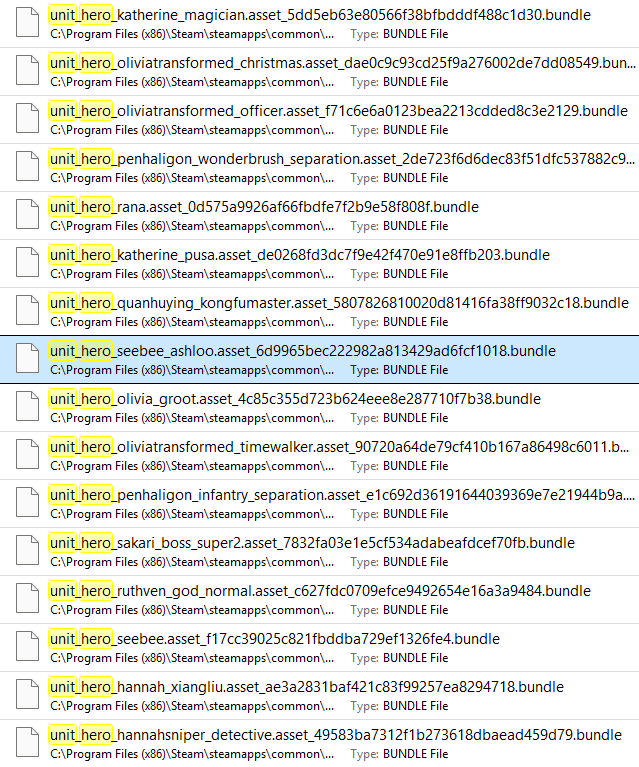
Search “unit_hero” in File Explorer. You should see many BUNDLE files.
Keep in mind that the hero’s internal name in the game’s code may differ
from their display name in the game. For example. Quan Huying is identified by
quanhuying while Ginzo is identified by seebee. But don’t worry, we can apply
AssetStudio to see the underlying assets.
Step 3️⃣
Extract AssetStudio. Locate AssetStudioGUI.exe and run it.
Click File -> Load file. For the sake of this tutorial, I will use Ginzo
as example. In folder spritereference, search for unit_hero_seebee.
Choose the top search result (should be Ginzo’s default skin). Open the
asset file in AssetStudio.

In AssetStudio’s toolbar panel, locate Asset List. You should now see Ginzo’s Sprites (shown in Preview). However, our main focus here is the file with Type of Texture2D. It’s called unit_hero_seebee. Select the file, in toolbar, locate Export -> Selected assets. Save the Texture2D to your PC. Close AssetStudio.
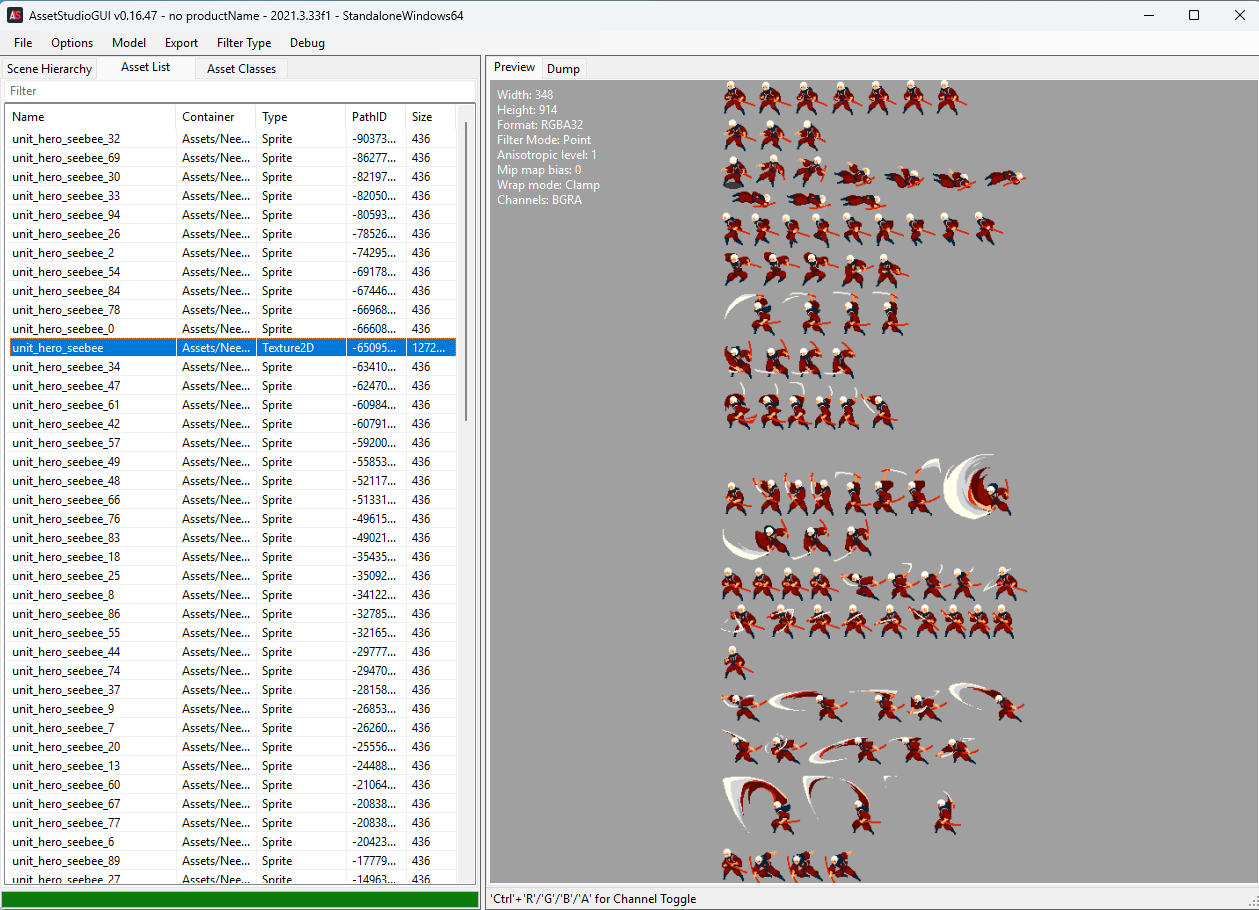
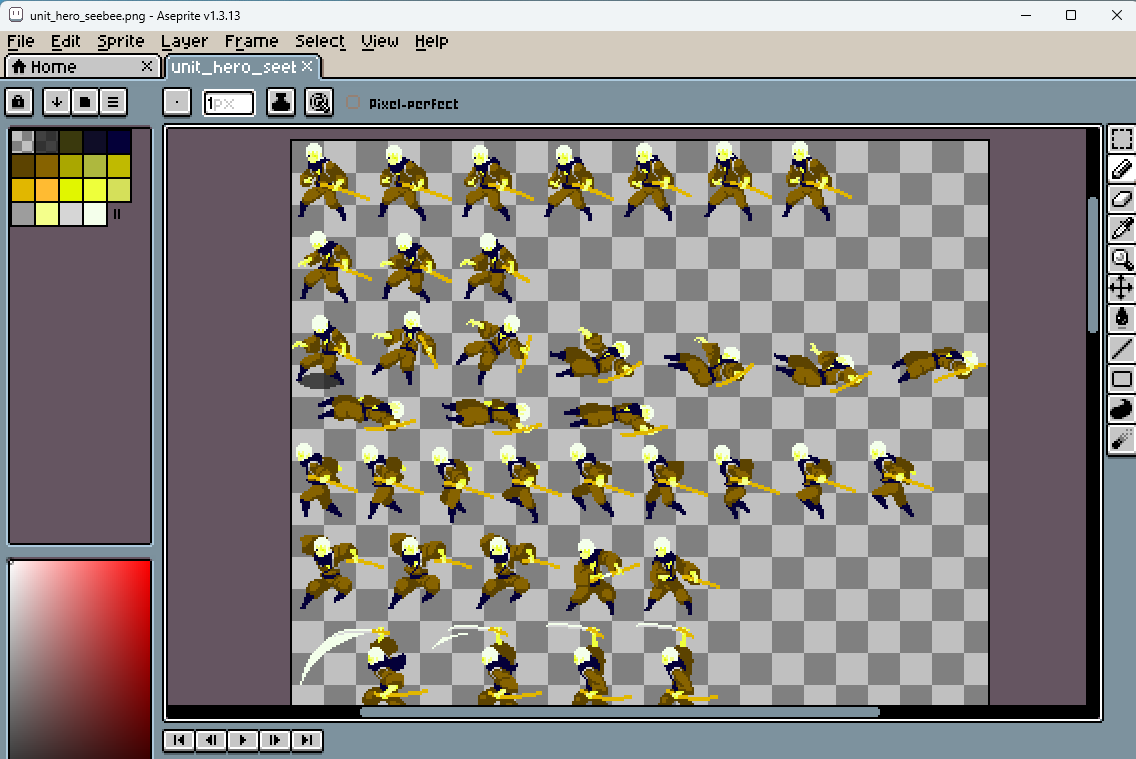
In the exported Texture2D folder, you should see a .png inside. Modify it
using a pixel art editor software such as Aesprite or docpict, etc. Save your work
as .png as well.
Step 4️⃣
Now let’s swap game assets. Extract UABEA and locate UABEAvalonia.exe and open it.
Click File -> Open. -> Locate the unit_hero_seebee file from earlier and open it.
You should see a popup window. Choose Memory. Now you should see everything loaded into the
software. Here we are only interested in the file with Type being Texture2D. Enlarger
the window to see file Type.
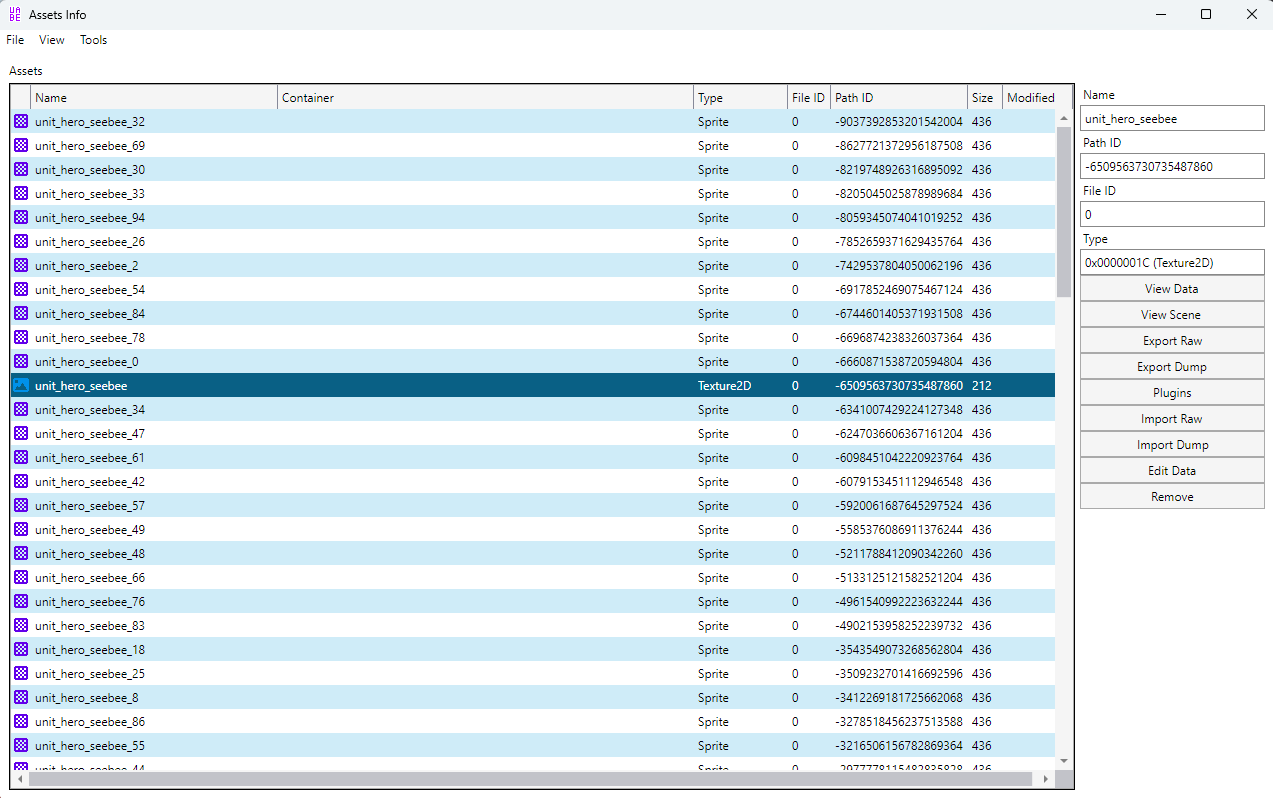
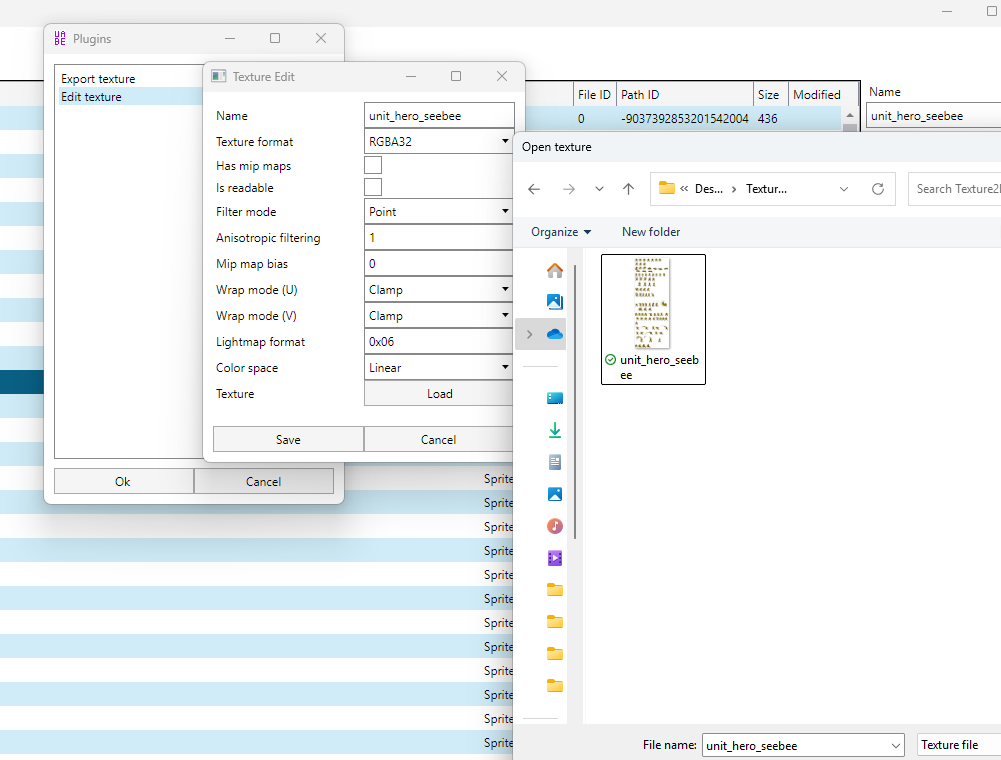
Open and select that file. On the toolbar to the right, find Plugins -> Edit texture -> Ok.
Click the Load button and locate your modified version (.png) to replace it.
Click Save. In the Assets Info window, also do File -> Save. In the UABEA window, also
do File -> Save. Now you can close UABEA.
Step 5️⃣
Extract addrtool-example-windows. Open and find Example.exe. Make a note on the
location of this program. For example
"C:\Users\kolynlin\Downloads\AddrTool\Example.exe"Next look catelog.json. On my PC, it’s located at
"C:\Program Files (x86)\Steam\steamapps\common\Otherworld Legends\Otherworld Legends_Data\StreamingAssets\aa\catalog.json"Confirm the existence of this file and record yours.
After you have recorded those two, open up Command Prompt (search it on your PC). Enter the following command (⚠️This is mine. Remember to change to yours)
"C:\Users\kolynlin\Downloads\AddrTool\Example.exe" patchcrc "C:\Program Files (x86)\Steam\steamapps\common\Otherworld Legends\Otherworld Legends_Data\StreamingAssets\aa\catalog.json"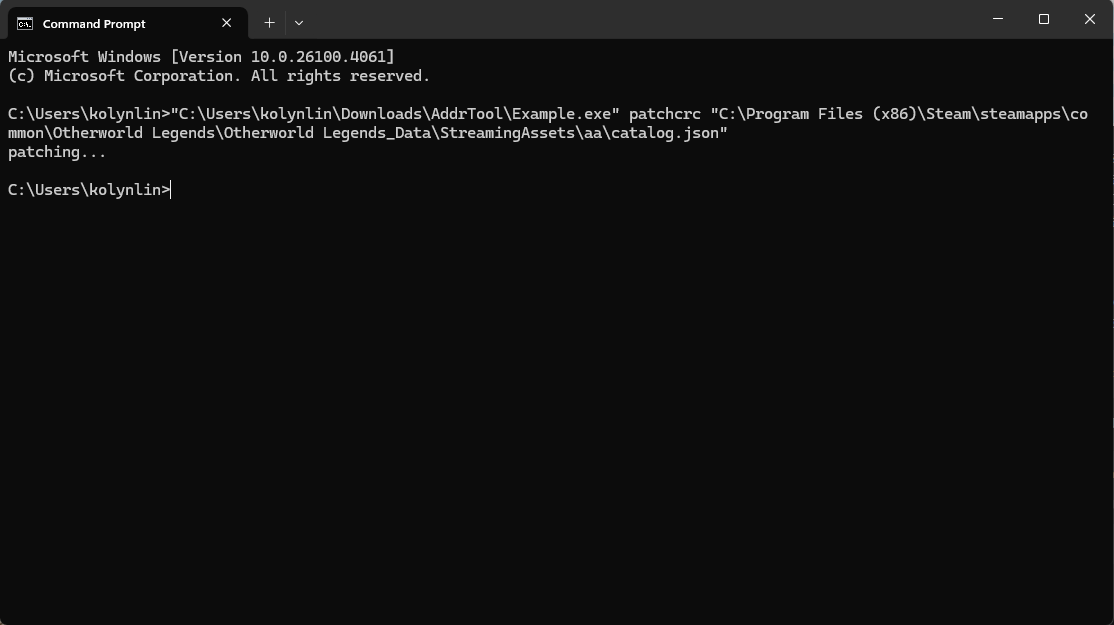
HOORAY🎉 Good job completing the tutorial. Wanna try out the more advanced one here?
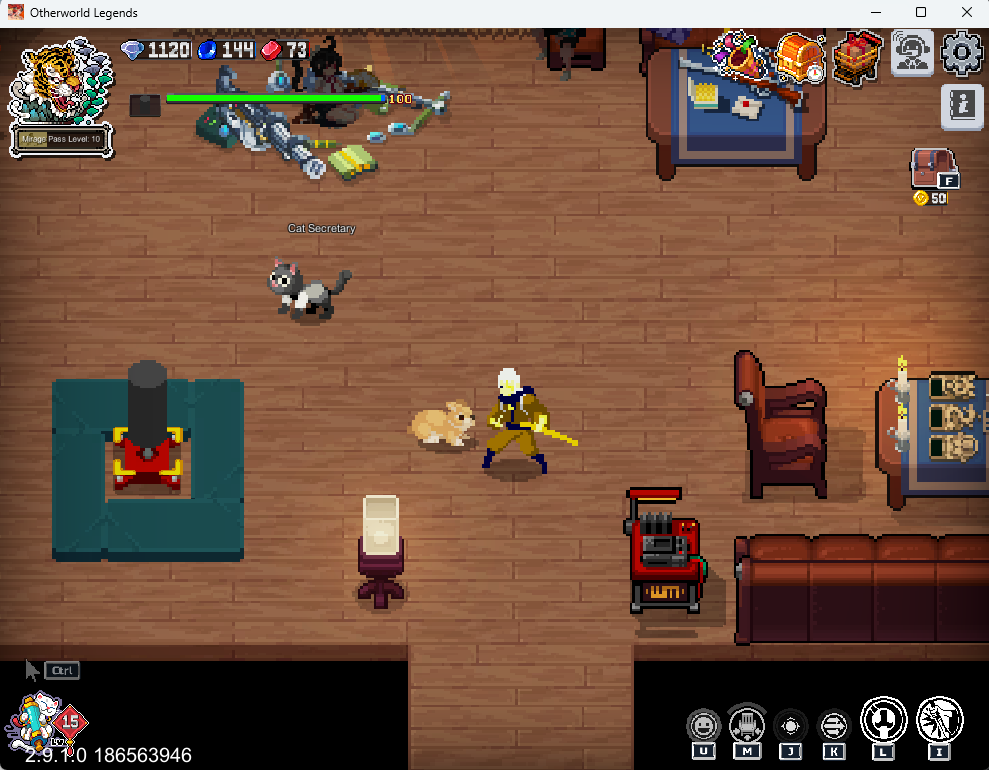
Permission granted by 咖喱猫扒饭.
💗 If you liked this blog, consider following me on GitHub.
👾 Happy Gaming 👾